

Everyone
In-app Assistant: help on every screen
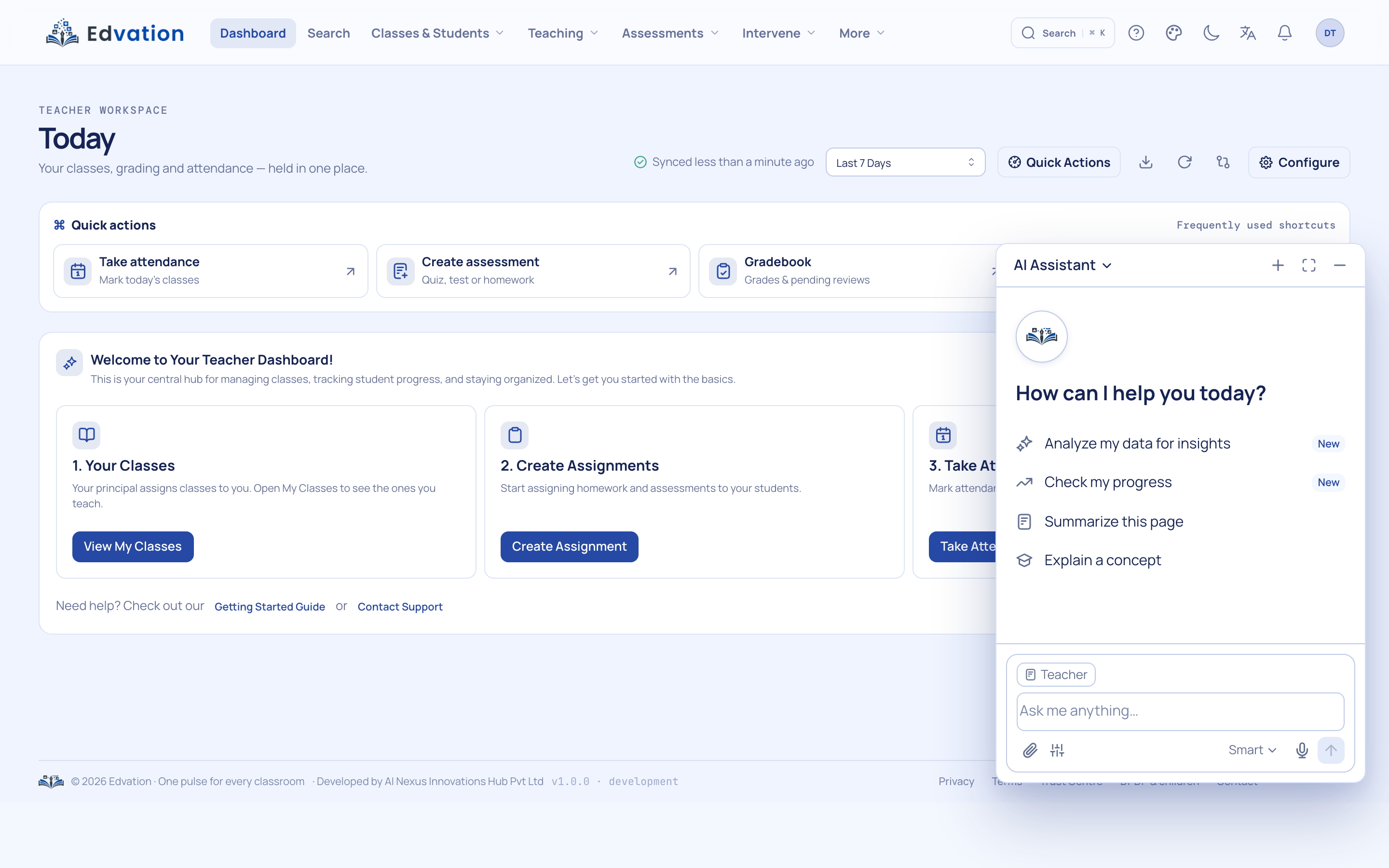
The In-app Assistant offers role-aware help on every page, answers questions about whatever screen you’re on, and can give a spoken daily briefing. It knows your role and context, so guidance is specific to what you can actually do next.
Who it’s for: For everyone on the platform — students, teachers, parents and staff.

How it works
Open it anywhere
The assistant is available on every screen, so help is never more than a click away.
Ask about this page
It answers in the context of the current screen and your role — not generic documentation.
Hear your briefing
Ask for a spoken daily briefing to catch up on what matters for your role today.
See it in a real classroom
The parent taps the assistant: "What is this late fee?" It reads the page context, explains the charge, and links the receipt. The same morning, a teacher’s spoken daily briefing reads out her classes, pending grading and one at-risk flag while she makes tea.
Why it matters: Help that already knows what screen you’re on — for every role in the school.
Who uses it, and for what
Students: Page-context help + a learning thread that remembers you.
Teachers: Spoken daily briefing + a teaching thread.
Parents: A companion that explains fees, digests and school messages.
Principals: A command-center thread over the day’s signals.
What makes it different
Role-aware help
Guidance is tailored to whether you’re a student, teacher, parent or leader — no wading through irrelevant features.
Page-context Q&A
It understands the screen you’re on, so "what do I do here?" gets a real, specific answer.
Spoken daily briefing
A short spoken summary surfaces what needs attention without hunting through menus.
Questions schools ask
Is it different for each role?
Yes. The assistant is role-aware, so a parent, a teacher and a principal get help scoped to their own permissions and tasks.
Does it need training or setup?
No. It works across the platform out of the box and answers from the context of the page you’re currently viewing.
See it on your own textbook
Book a walkthrough and watch this agent answer from a chapter you upload.
Edvation · Updated July 2026

